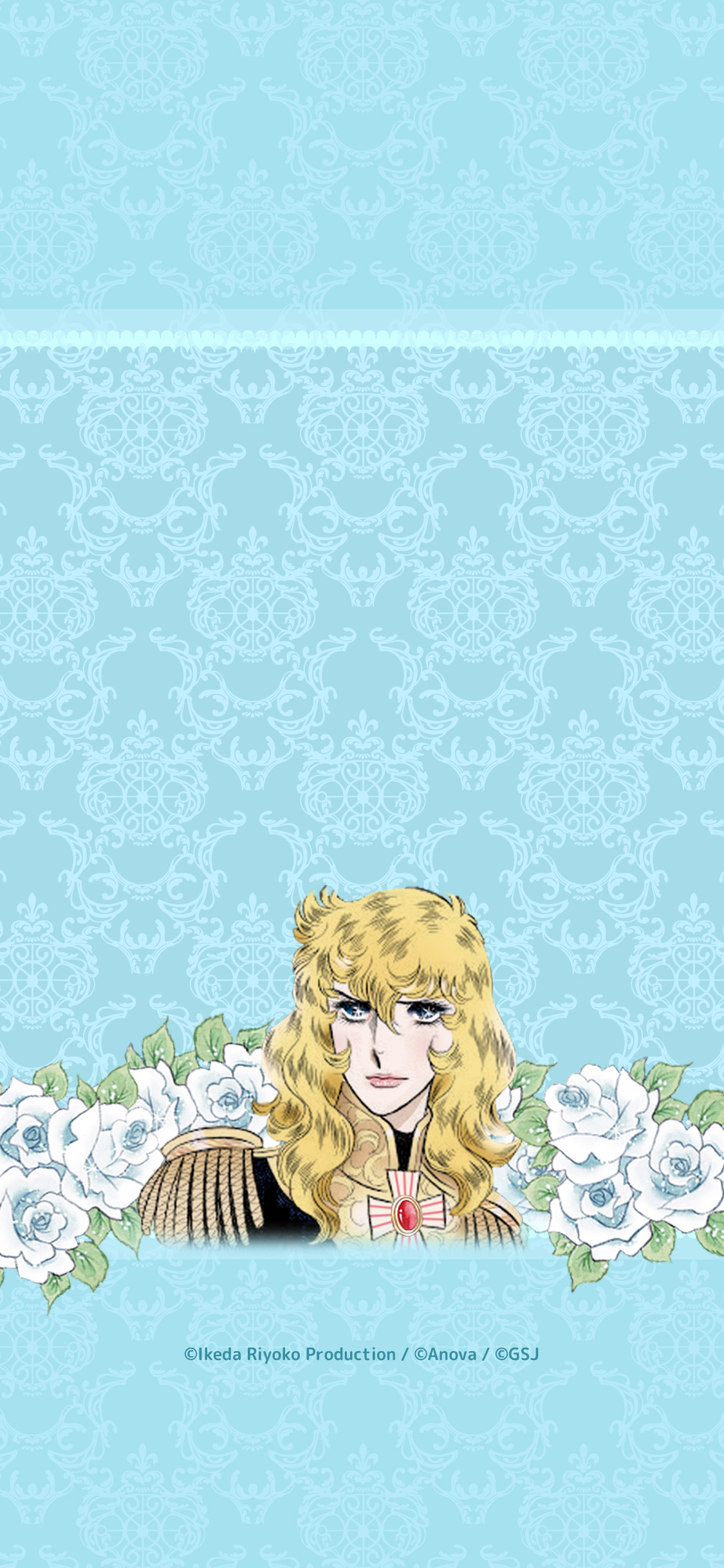
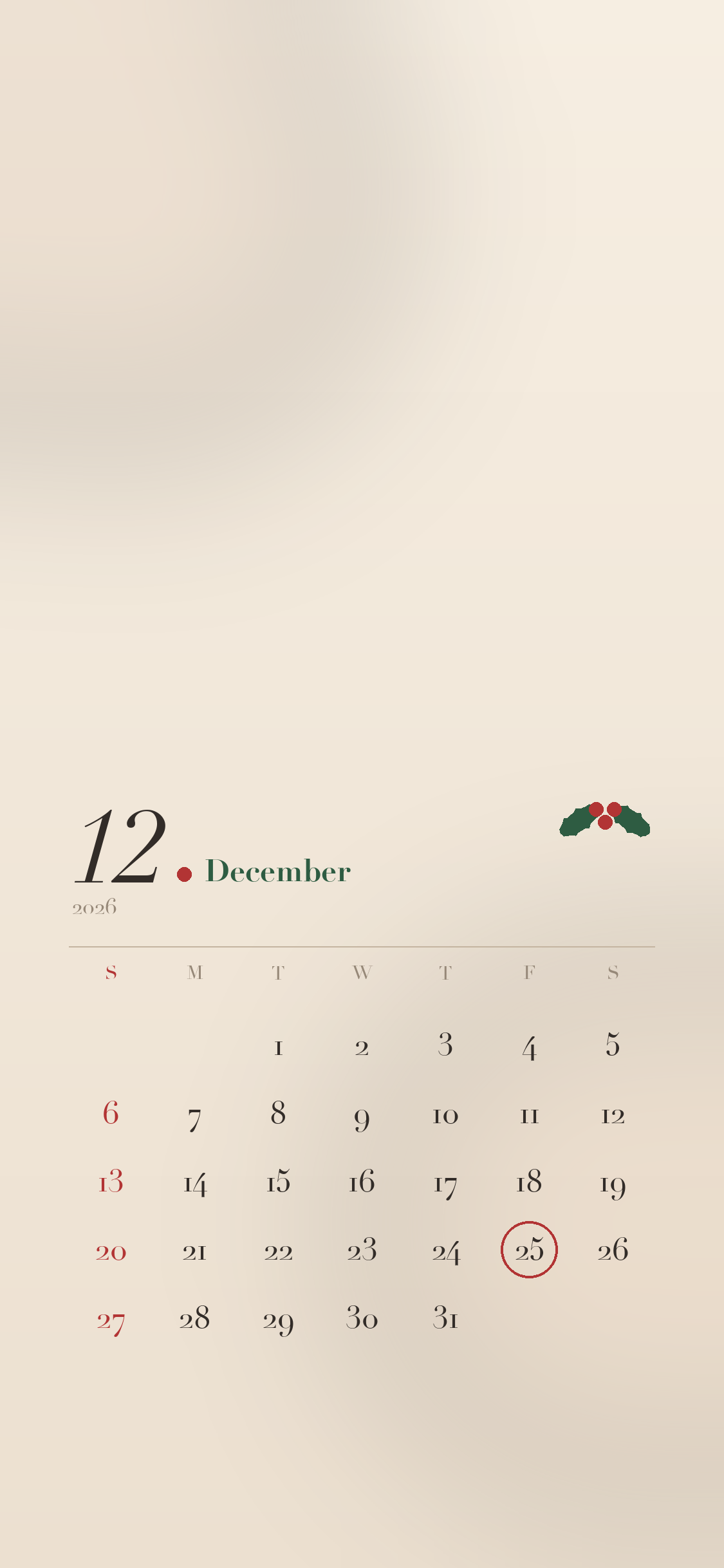
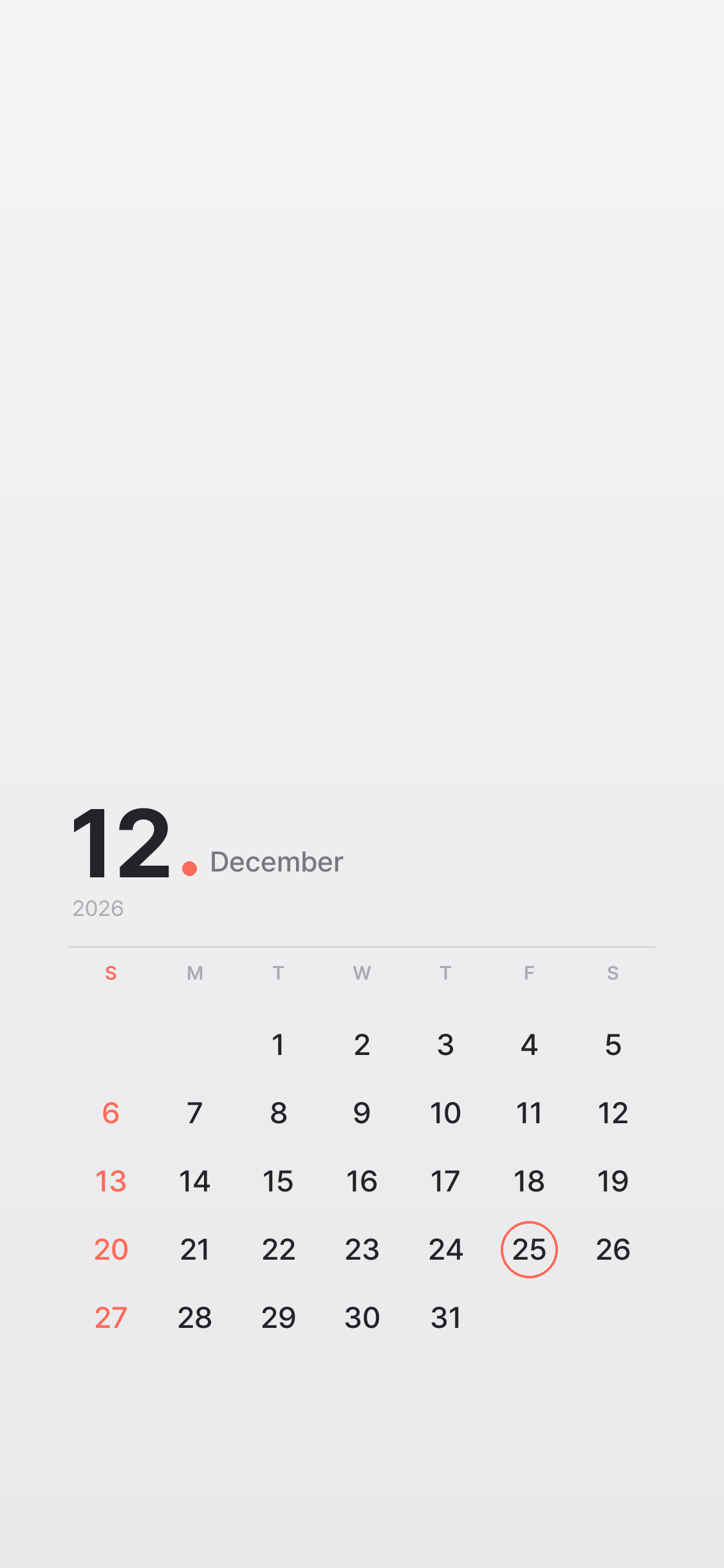
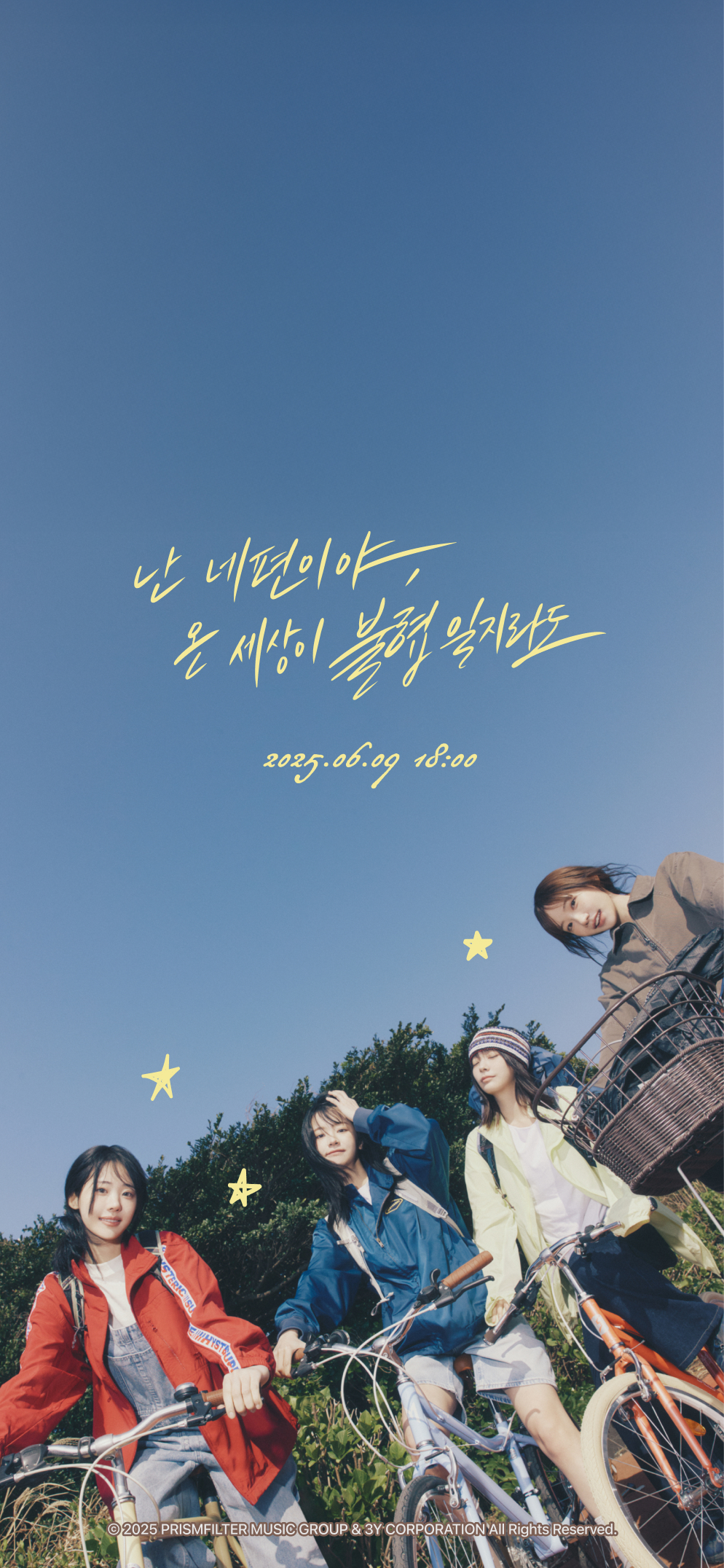
In a million noises, I'll be your Harmony : C ver.
Explore In a million noises, I'll be your Harmony : C ver., a visual base for your Lock Screen or Home Screen. Preview the look and use it in PhotoWidget for setting the mood before matching widgets and icons around it.



Quick answer
In a million noises, I'll be your Harmony : C ver. is a PhotoWidget wallpaper for setting the mood before matching widgets and icons around it. Use it when you want a visual base for your Lock Screen or Home Screen and a Home Screen setup that feels intentional without building every piece from scratch.
What is In a million noises, I'll be your Harmony : C ver.?
In a million noises, I'll be your Harmony : C ver. is a visual base for your Lock Screen or Home Screen. It gives your home screen a clear visual direction, so the screen feels coordinated before you add personal photos, daily information, or app shortcuts.
Best use cases
- Building a home screen setup around one consistent mood
- Finding PhotoWidget wallpapers for setting the mood before matching widgets and icons around it
- Saving time when you want a polished screen without manual matching
- Comparing visual styles before applying them in the app
How to apply In a million noises, I'll be your Harmony : C ver.
- Open PhotoWidget on your phone.
- Browse the wallpapers section.
- Preview In a million noises, I'll be your Harmony : C ver. and check how it fits your screen.
- Save or apply it, then match it with related widgets, wallpapers, icons, or watch faces.
What to match with it
Pair In a million noises, I'll be your Harmony : C ver. with photo widgets, calendar widgets, icon sets, complete themes. Repeat one or two colors from the design, then choose widgets and icons with a similar contrast level. This keeps the setup cohesive while still leaving room for personal photos and useful information.
Styling checklist
- Keep the wallpaper and widgets in the same color mood.
- Use icon sets when you want the whole screen to feel finished.
- Add one useful daily widget, such as calendar, clock, D-Day, memo, or battery.
- Leave enough empty space so the design feels easy to scan.