

Set Up Home Screen Widget
Learn how to add and connect PhotoWidget widgets to your iPhone Home Screen.
Published Reviewed
Create WidgetSet Up Widget
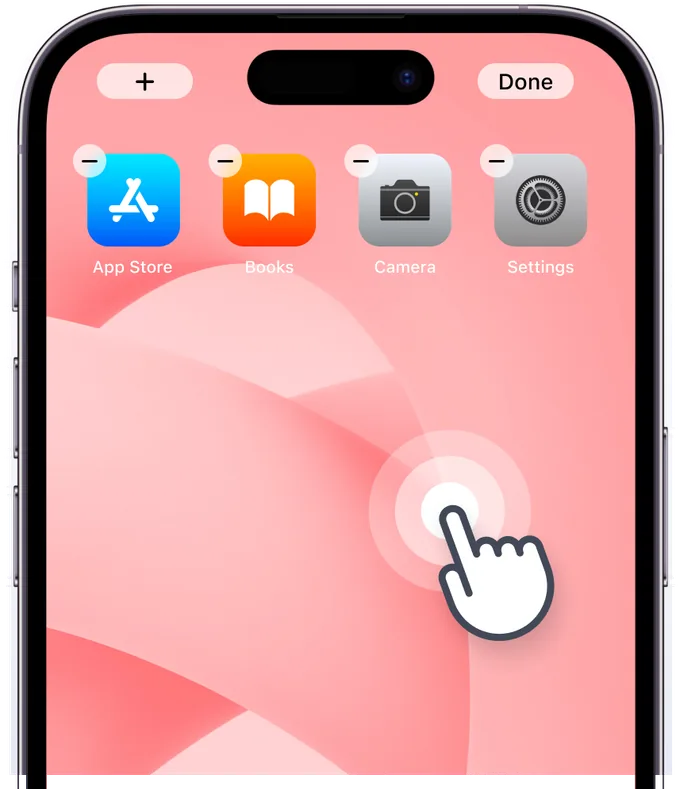
Step 1
Enter Home Screen Edit Mode
Touch and hold the Home Screen to enter edit mode, then tap the [+] or [Edit] button in the top left. If you can't see the widget, please restart your device.
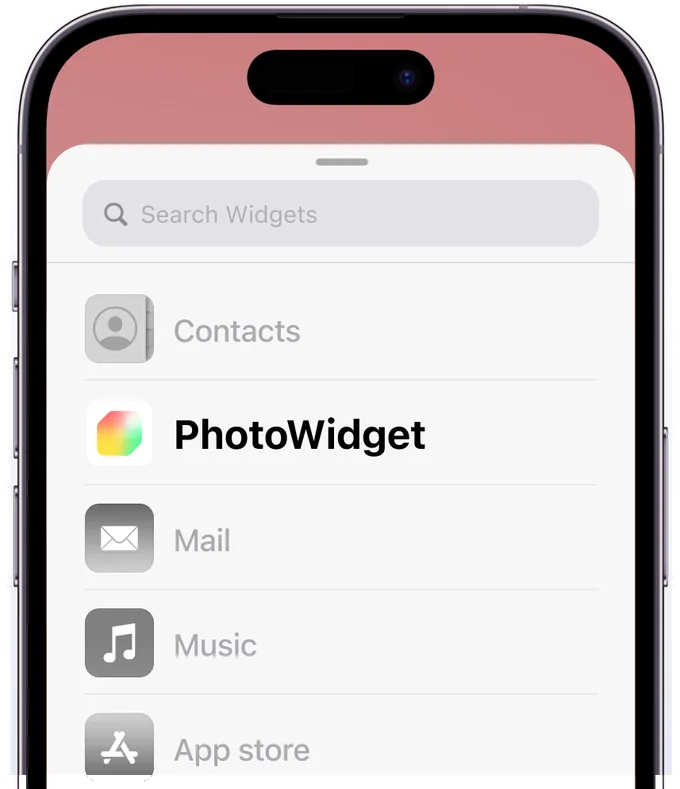
Step 2
Find PhotoWidget in the List
Find PhotoWidget in the list. If it's not there, please restart your device.
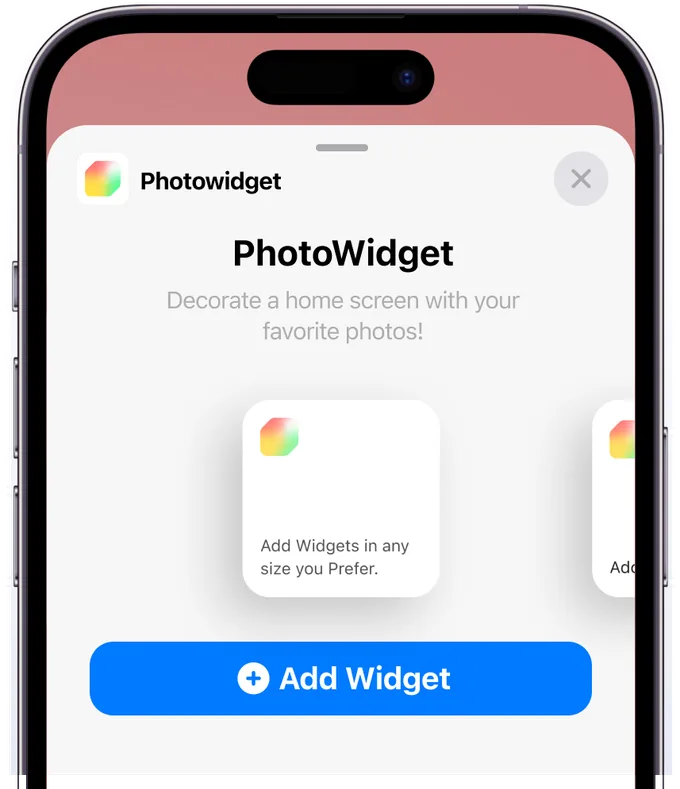
Step 3
Select Widget Size
Add your desired widget size, and tap the added widget immediately.
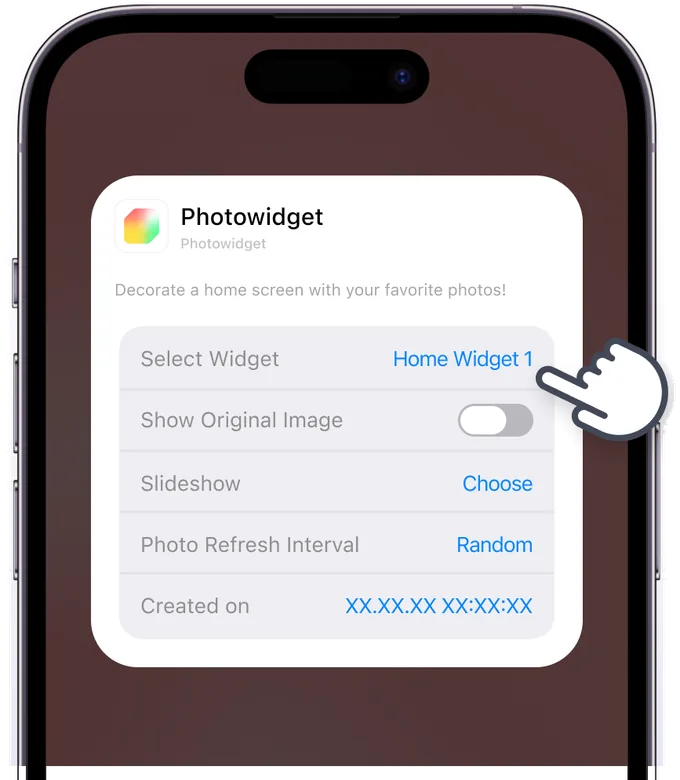
Step 4
Set Up Widget
Choose the widget type and album saved in the app. To turn off tint/transparent mode, turn ON 'Show Original Image'. Supported on iOS 18 and above.
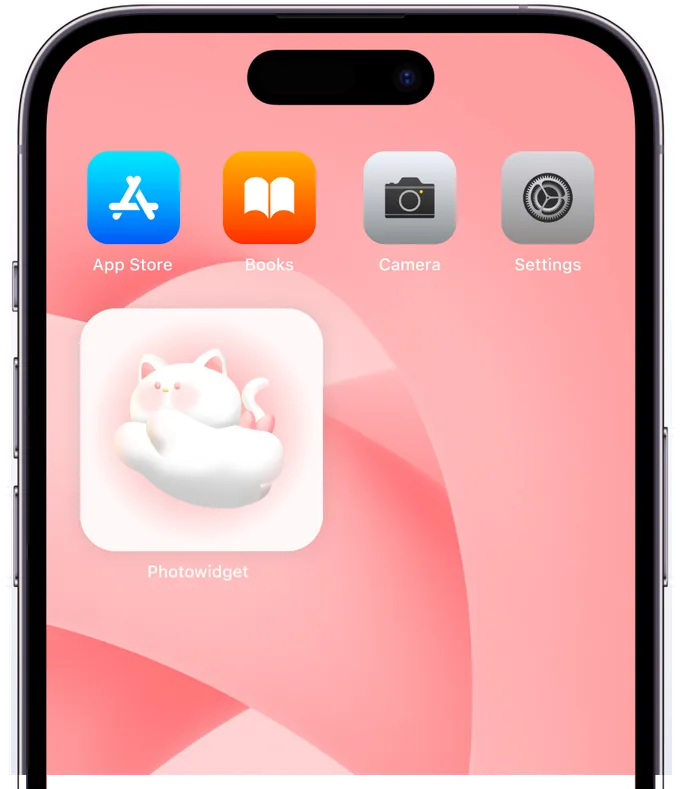
Step 5
Widget Setup Complete!
Check if your widget has been added successfully. Enjoy your beautiful new screen!