

Set Up Inline Widget
Learn how to connect a PhotoWidget album to the inline area of your Lock Screen.
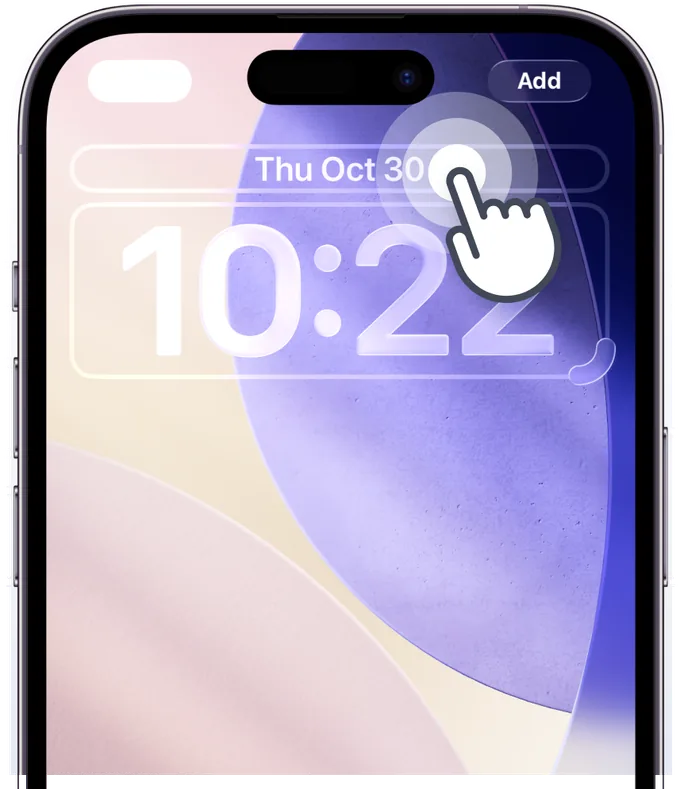
Step 1
Enter Lock Screen Edit Mode
Touch and hold the Lock Screen to enter edit mode, then tap the inline widget area. If you can't see the widget, please restart your device.
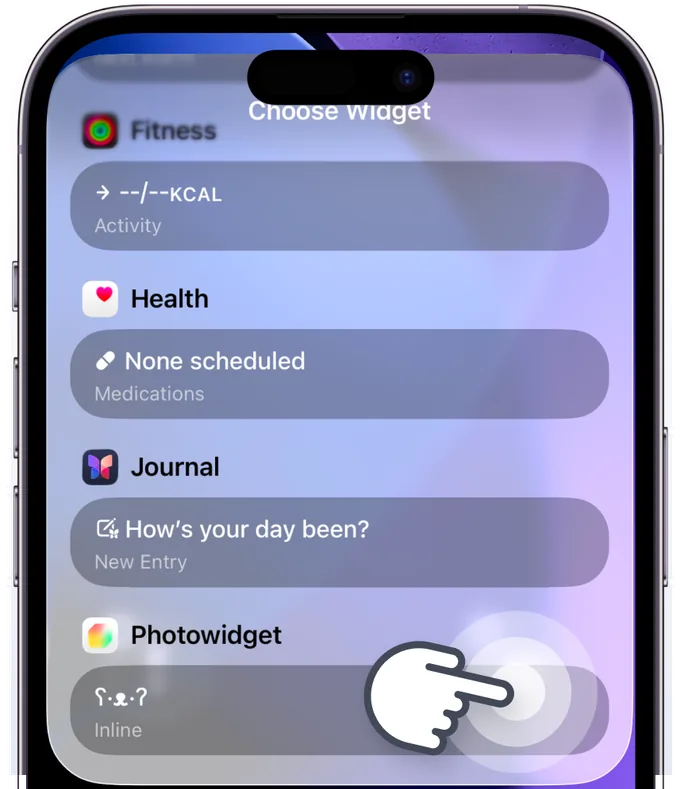
Step 2
Find PhotoWidget in the List
Find PhotoWidget in the list. If it's not there, please restart your device.
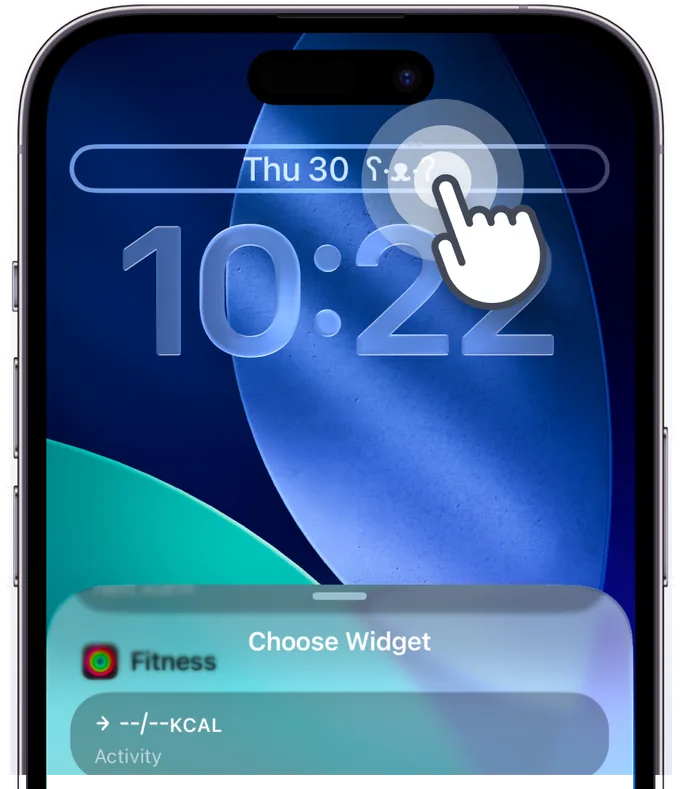
Step 3
Tap the Added Widget
Tap the widget added to the Lock Screen. Before an album is connected, a default design will be shown.
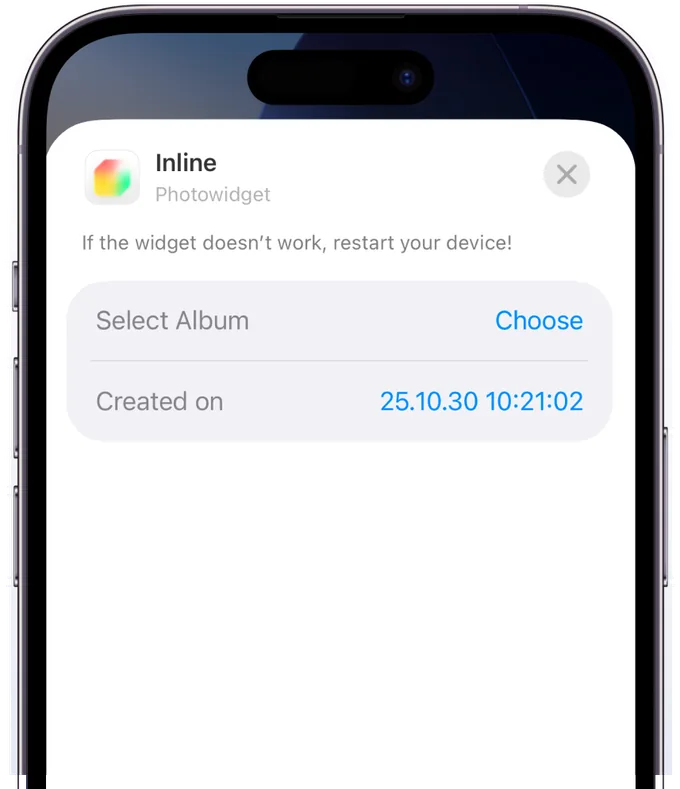
Step 4
Set Up Widget
Select the album you saved in the app.
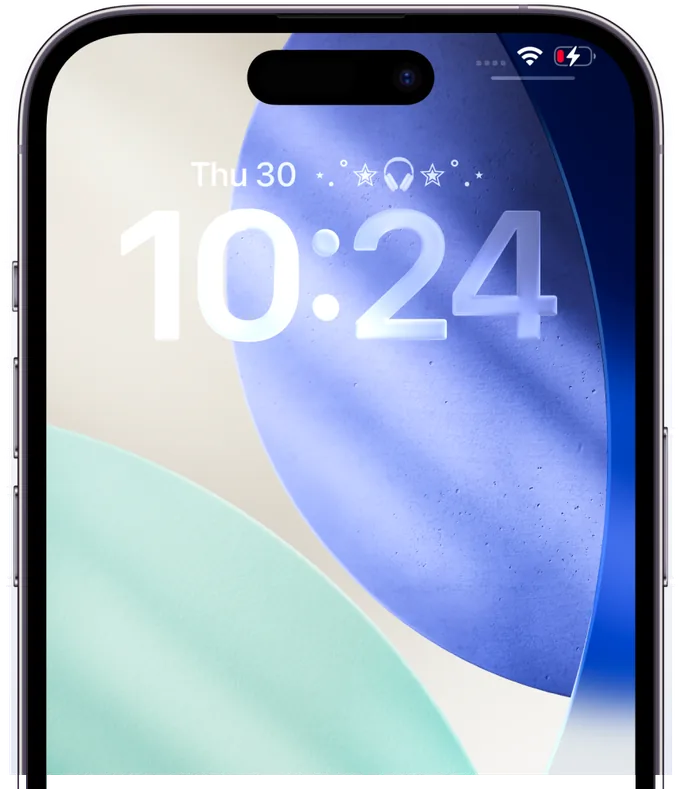
Step 5
Widget Setup Complete!
Check if your widget has been added successfully. Enjoy your beautiful new screen!